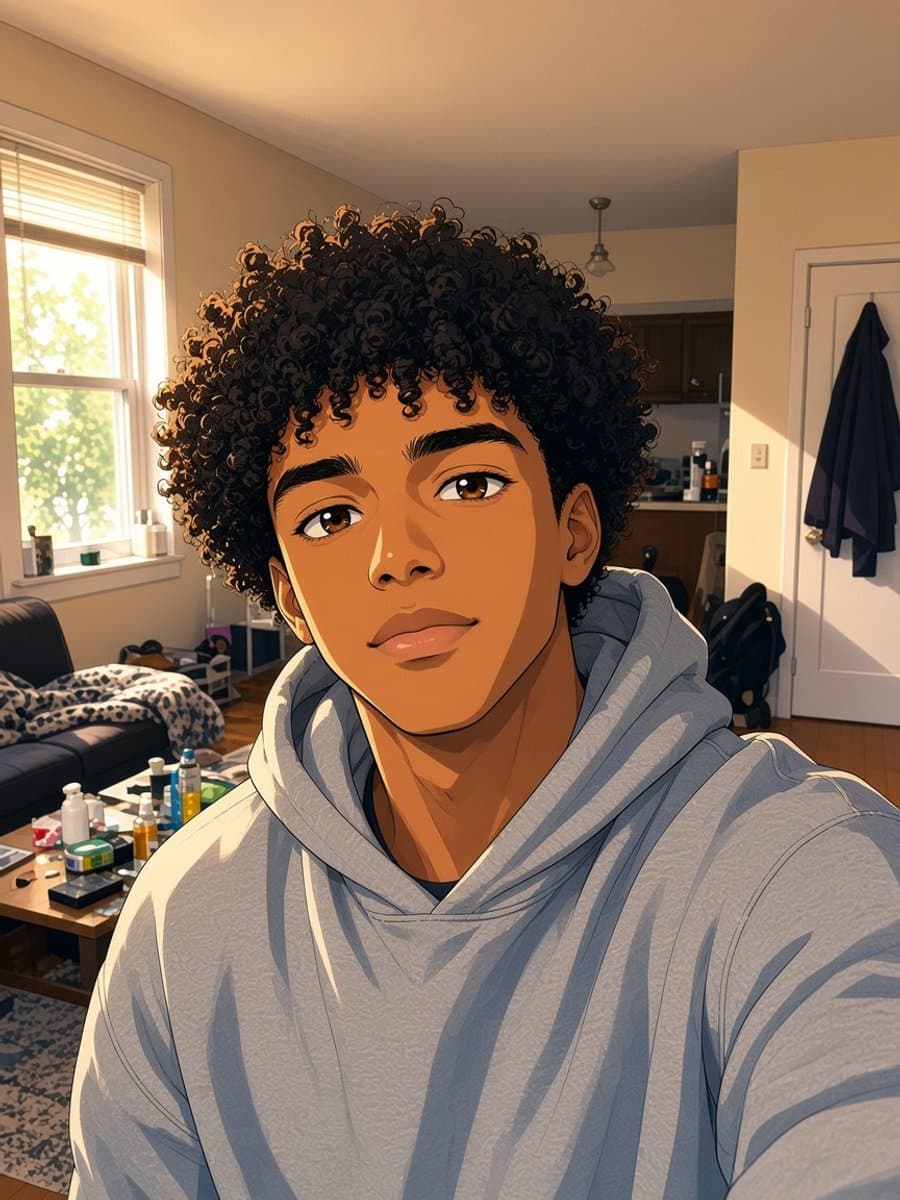
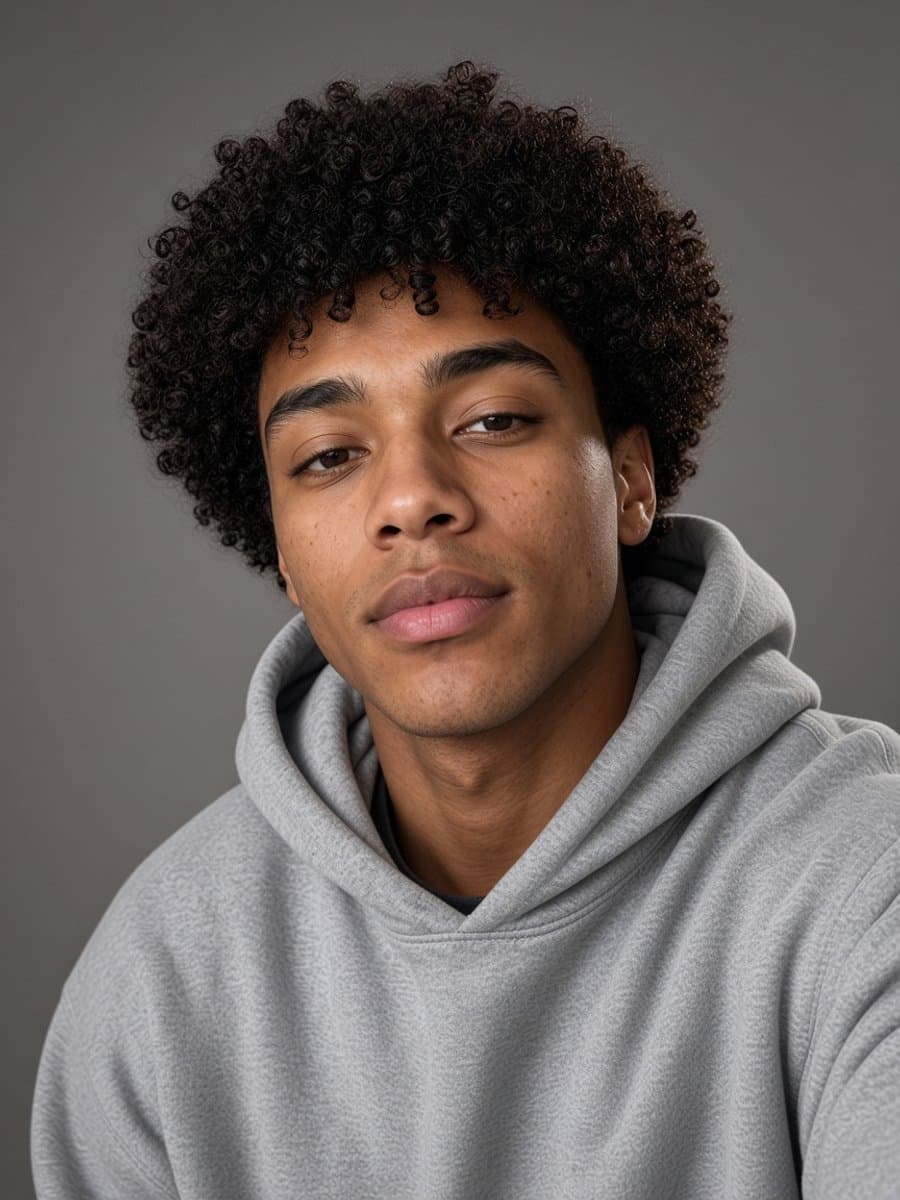
If you're already building something in Canva - a resume, a LinkedIn banner, a pitch deck - generating a headshot in the same place you're doing everything else has an obvious appeal. Whether it's the right call depends on what you actually need next.
What it's good for
Canva's AI headshot feature lives inside its broader design platform, which means the output drops straight into whatever you're already building there. If your headshot needs to live in a Canva-made resume or graphic, staying in one tool avoids exporting, re-uploading, and re-aligning everything.
Where a single-purpose tool is faster
If all you actually need is one clean headshot - not a design project it needs to live inside - a tool built around exactly that one task tends to be quicker to use: upload a photo, get a headshot back, done. No design canvas, no template picking, no navigating a broader editor to get to the one feature you came for.
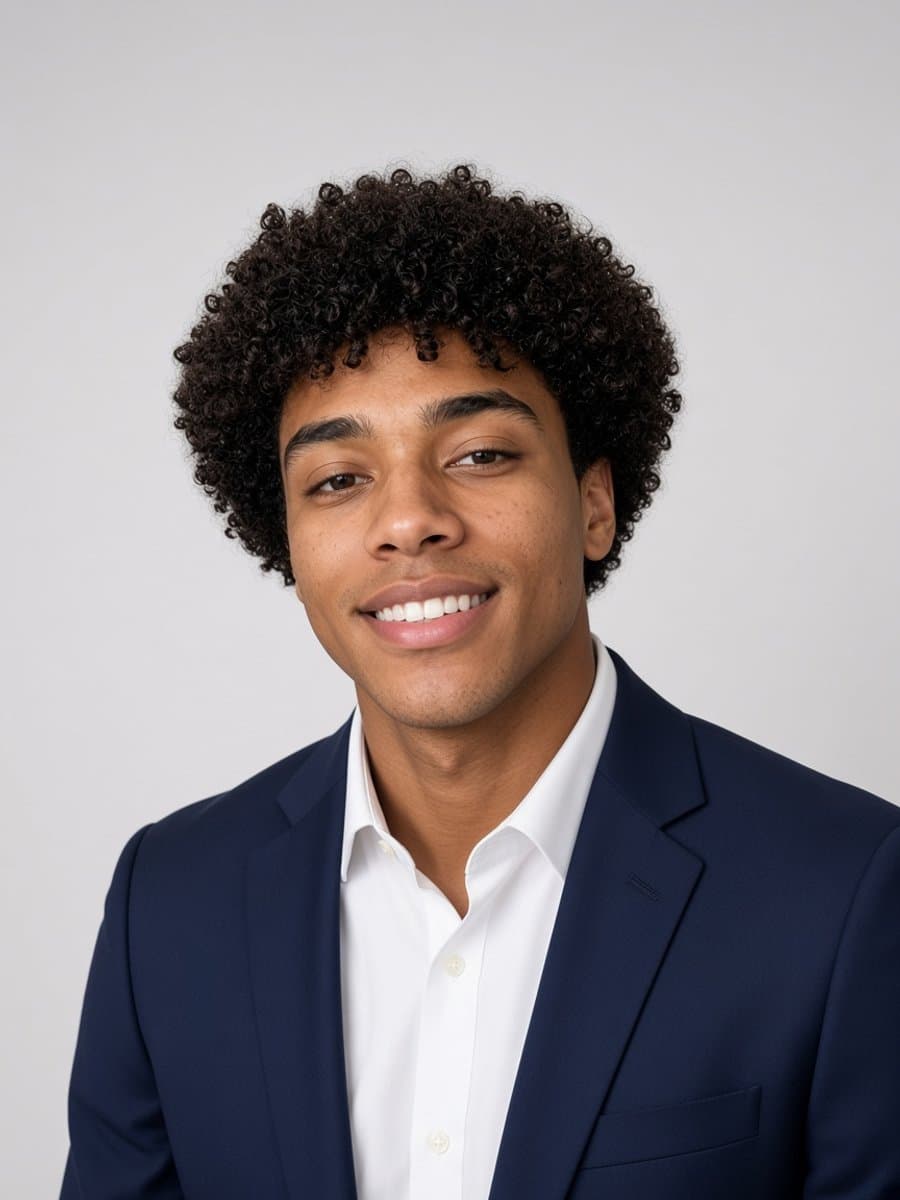
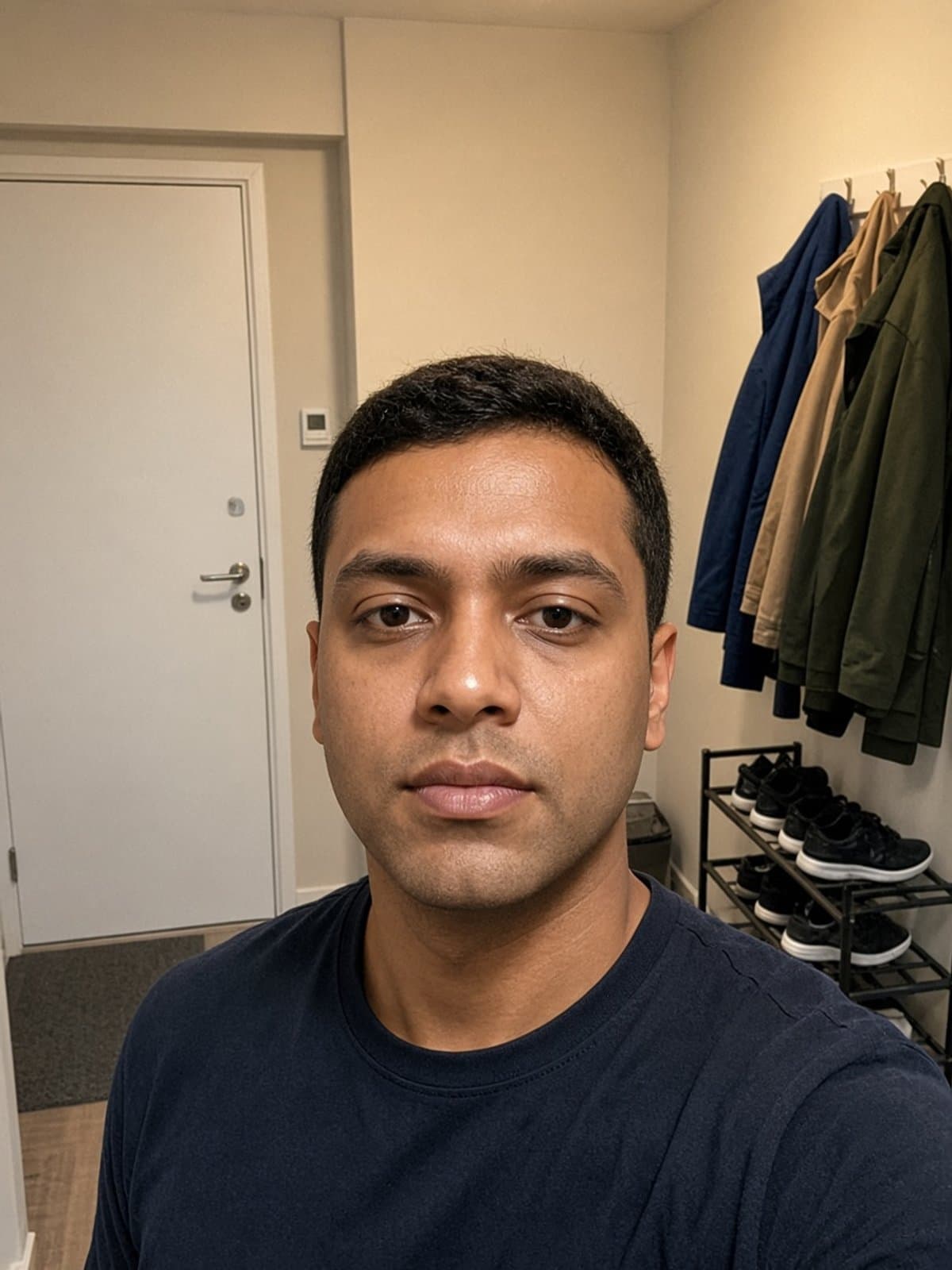
Try linkedin headshot on your own photo
Try it freeWhat actually makes a good AI headshot
Regardless of which tool generates it, the same things separate a headshot that looks professional from one that looks obviously AI-generated:
- Lighting that's even and flattering, not harsh or flat
- Skin texture that still looks like skin - over-smoothing is the fastest way to make a photo look fake
- Attire and background that fit the context - a blazer and clean backdrop for LinkedIn, something more casual for a dating profile
- A result that's still recognizably you, not a generic face that happens to share your bone structure
Check for these regardless of which tool you land on - they matter more than which app made the image.
For how Canva's face-swap feature compares to a photo-transformation tool, see our Canva face swap breakdown. For the wider landscape of editing app categories, start here.